
Guide
Quinta screen by screen: what the display means, how to tune and how the tools work. Everything marked PRO is part of Quinta Pro. In the app, you find this guide under Settings › About Quinta.
The tuner screen
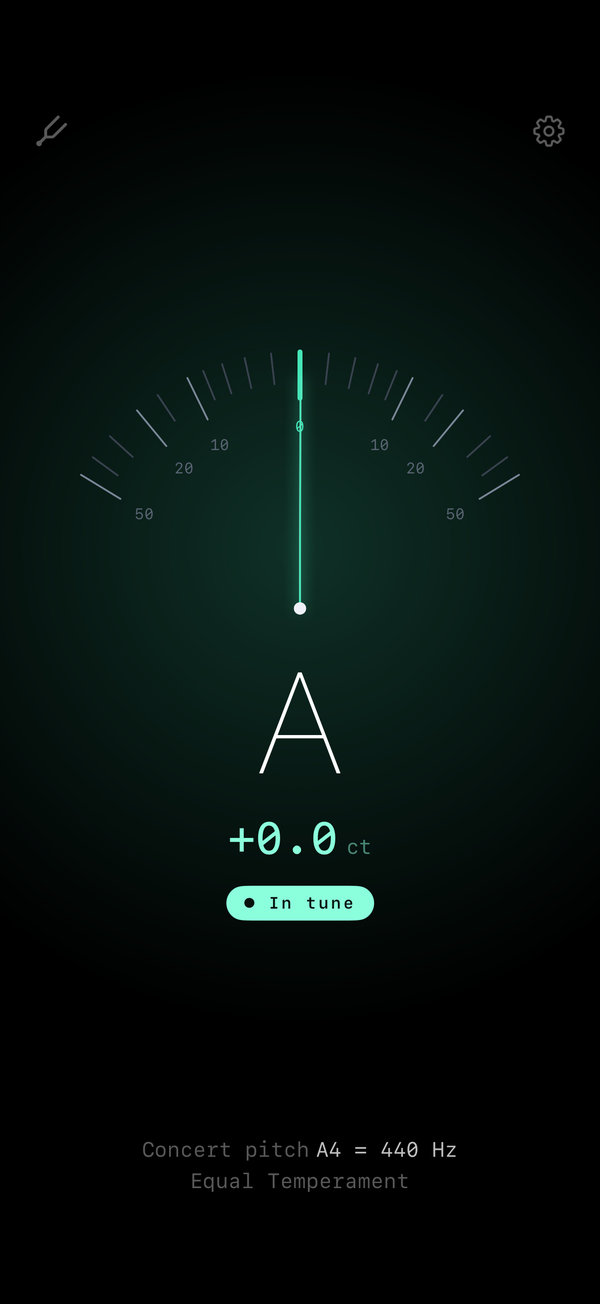
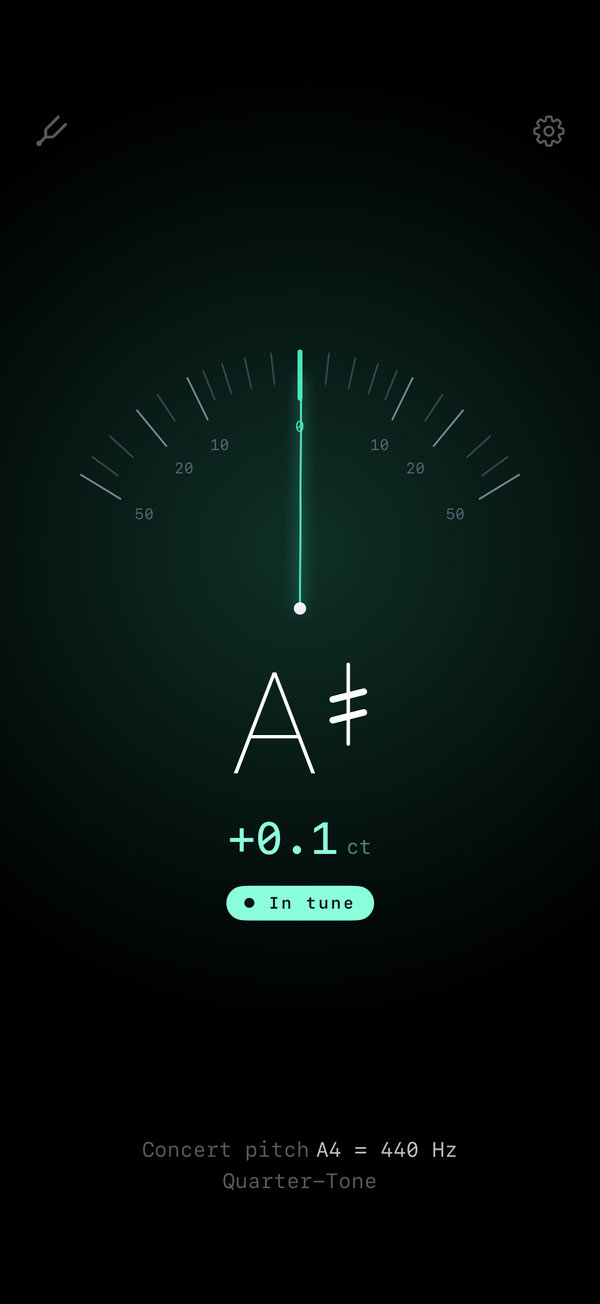
Play a note: the scale at the top shows how far it is from the target, with the note name and the deviation in cents below. The scale runs to ±50 ct and is stretched around the center, where fine-tuning happens.
Green means in tune, nothing else. The needle turns green only when your note is stable and in tune. The “● In tune” pill appears at the same time.
Calm, but honest. When your note holds steady, the needle settles. What it shows is measured, not prettified: a constant offset stays visible.
Footer. At the bottom you see the concert pitch and the temperament; if a tuning mode other than Standard is active, it follows. If the tuning behavior differs from every mode, for example after changes in Nerd Mode, the footer says “Modified”. A tap on the footer opens Quick Switch.
Corners. The tuning fork at the top left opens the tools and tuning modes, the gear at the top right opens Settings.
Microphone. On first launch, iOS asks whether Quinta may use the microphone. If you declined, the tuner screen shows “Microphone access needed”; “Open Settings” takes you straight to the switch.
Quick Switch and concert pitch presets
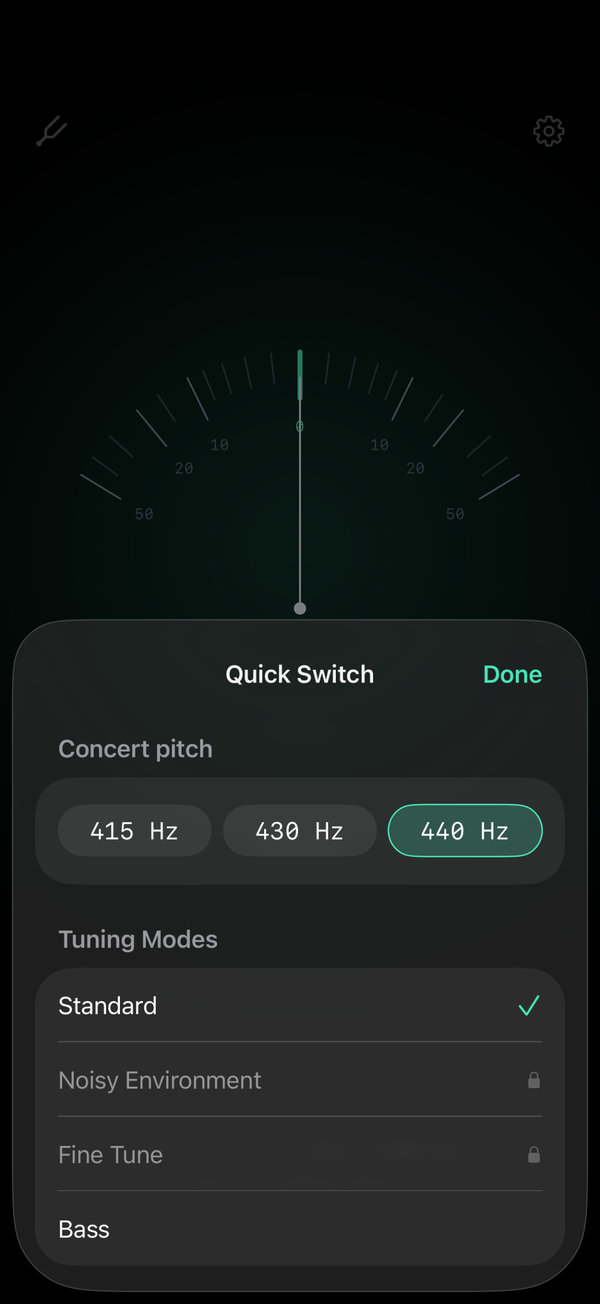
A tap on the footer of the tuner screen opens Quick Switch: your concert pitch presets at the top, the tuning modes below. A choice closes the sheet right away, so every change takes two taps. 415 in the morning, 430 in the evening? This is what it’s for.
Managing presets: Settings › Concert pitch › Presets. A tap sets the concert pitch, a swipe deletes a preset, and “Add Custom Concert Pitch” takes any value from 390 to 466 Hz, to a tenth. There is room for up to eight presets; out of the box you get 415, 430 and 440 or 442 Hz, depending on your region.
A preset sets the concert pitch just like Settings do: a concert pitch measured with Concert A is replaced.
Concert pitch, presets and Quick Switch are free. Tuning modes that are part of Quinta Pro show a padlock.
Tuning modes
A tuning mode defines how the tuner screen measures and displays. You find the modes below the tools (tuning fork, top left) and in Quick Switch; a tap applies a mode, the checkmark shows the active one. Standard and Bass are free, the others are part of Quinta Pro.
Standard
The default: the ±50 ct scale and the calm needle.
Fine Tune part of Quinta Pro
A ±10 ct fine scale and a more sensitive needle: you see every fluctuation.
Noisy Environment part of Quinta Pro
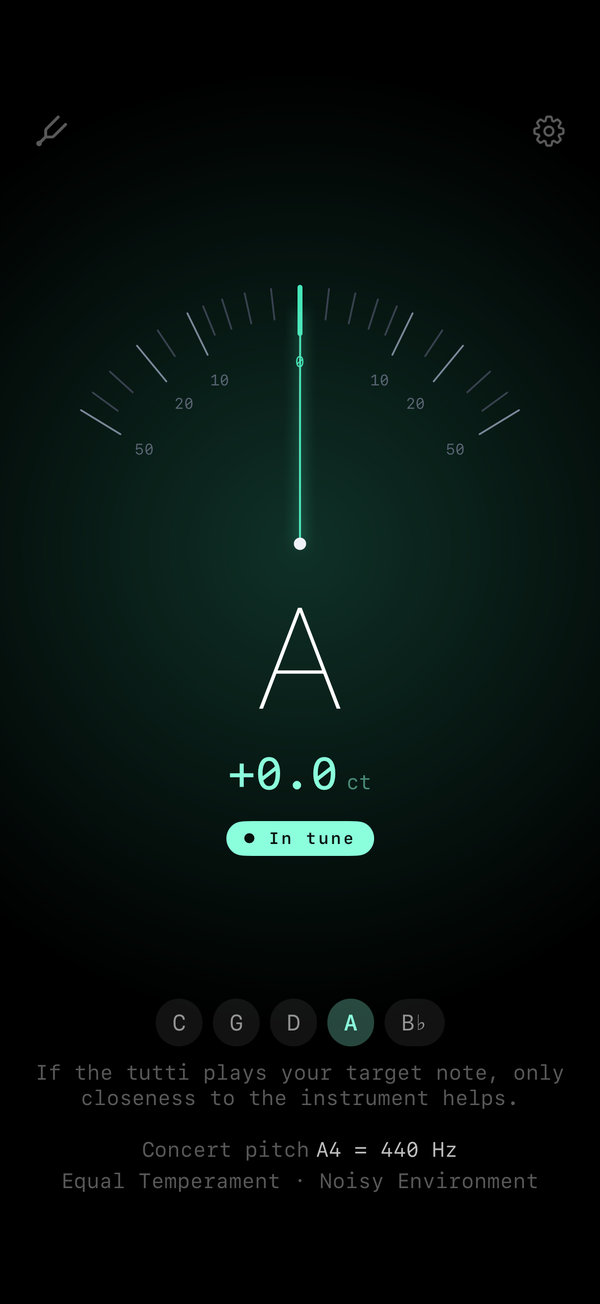
The others are already warming up? Noisy Environment listens only for the target note you pick with the chips: C, G, D, A or B♭ (for brass). Quinta largely blocks out the notes around it.
This helps within limits: if the tutti plays your target note, Quinta cannot tell it apart from yours. Then only getting closer to your instrument helps.
This applies only on the tuner screen. The tools measure as usual.
Bass
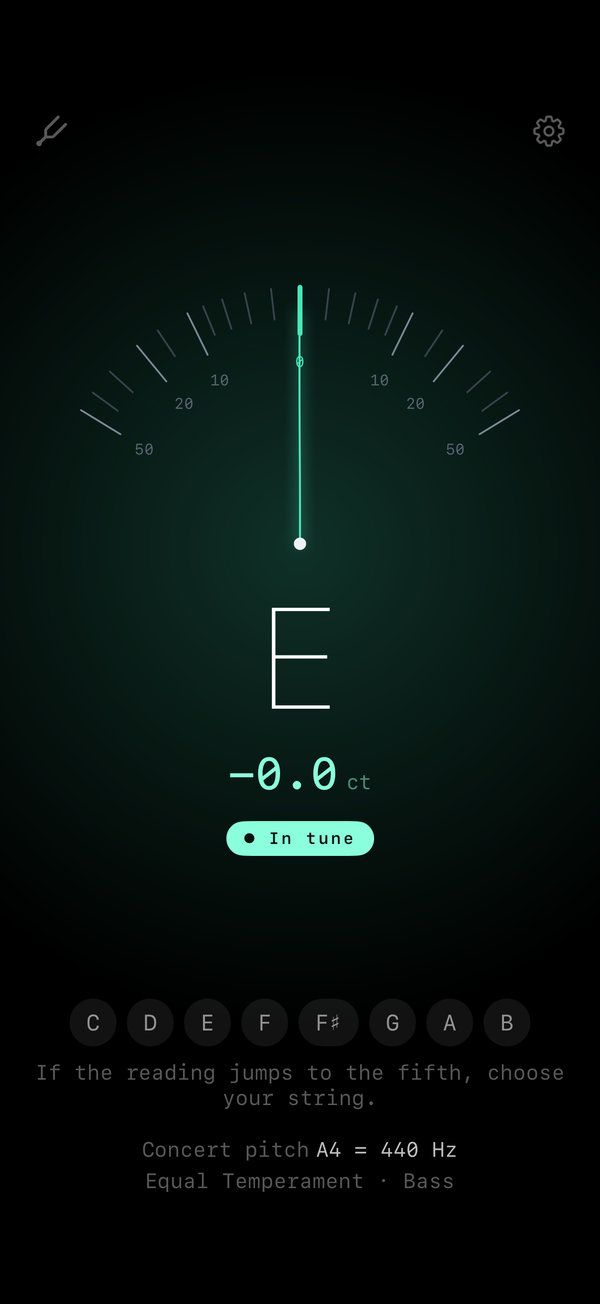
For double bass and five-string bass: a calm needle that low notes cannot unsettle. Quinta recognizes the double bass’s low C only in this mode.
On some strings an overtone sounds louder than the fundamental and the reading jumps to the fifth. Then pick your string with the chips (C, D, E, F, F♯, G, A, B); a second tap turns the selection off.
Just Intonation part of Quinta Pro
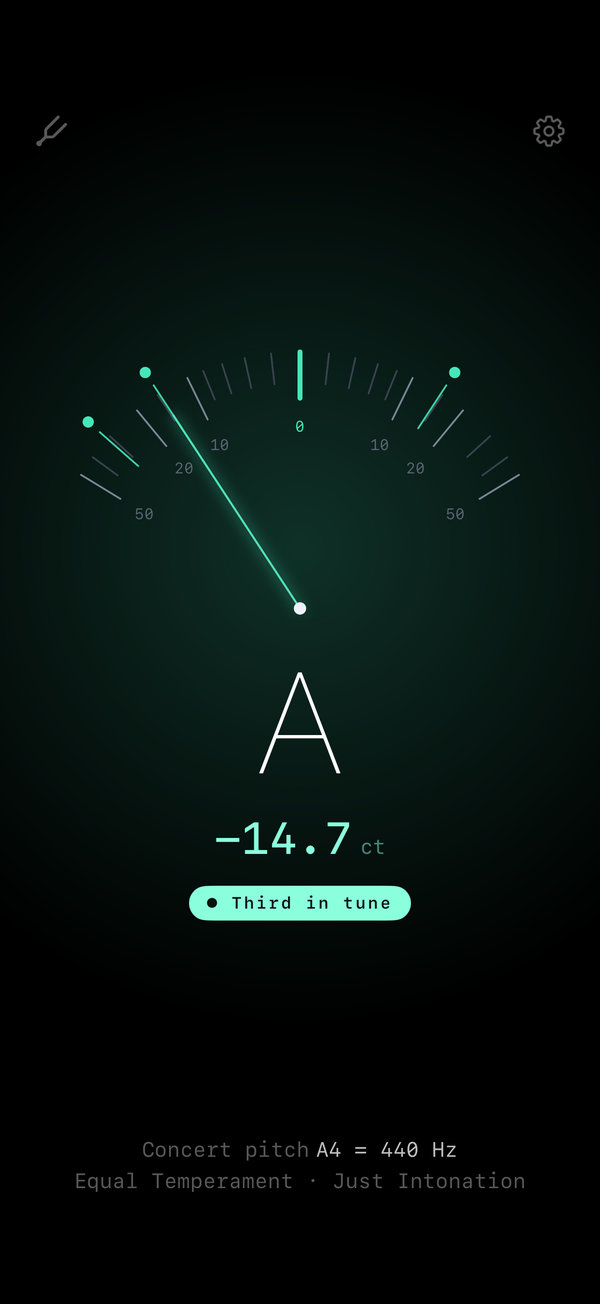
Quinta measures in equal temperament (which offers conveniently narrow fifths for the strings): the needle shows the deviation from the equal-tempered note. In addition, marks on the scale show where the pure major and minor third and the natural seventh lie, above and below your reference note.
Hit a mark and the needle turns green, the pill says “Third in tune” or “Seventh in tune”. Quinta doesn’t know whether your note is the third or seventh of a chord; that is your call, the marks show where the pure position would be.
Your temperament from Settings rests while the mode is active. It stays saved and applies again as soon as you switch modes.
Custom modes part of Quinta Pro
With Nerd Mode on (Settings), a long press on the tuner screen opens the Lab. There you set in-tune zone, needle, stability and display; “Save Settings” turns this into a custom mode. It saves concert pitch, system, root, accuracy, needle, stability and display, and optionally an appearance. Custom modes appear below the built-in ones; swipe left to delete one.
Concert A part of Quinta Pro
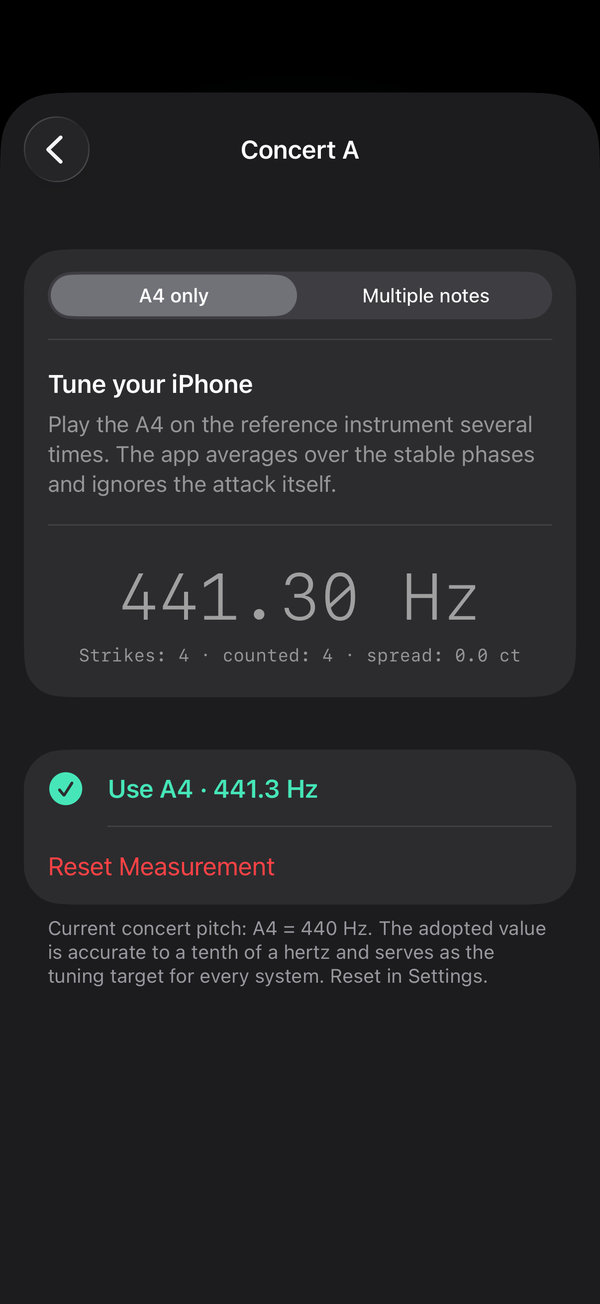
The piano sits at 441.7 Hz? With Concert A, Quinta takes the concert pitch from a reference instrument, to a tenth of a hertz. You find it among the tools.
A4 only: play the A4 on the reference instrument several times. The status line counts the strikes. “Use A4” makes the measured value your concert pitch, and the footer marks it as “measured”.
Multiple notes: play the reference notes one at a time, for example your instrument’s open-string notes on the piano or harpsichord, several times each until Quinta detects the pitch. After “Use Notes”, the tuner screen recognizes these notes automatically and targets their measured pitch across octaves; if the A4 is among them, it becomes the concert pitch. Once all twelve notes are captured, you can save the instrument’s tuning as a custom temperament.
Pianos are stretch-tuned in the high and low registers. Use A4 and the octave around it; Quinta reminds you.
Every new capture replaces the previous measurement, as does a manual concert-pitch change. Backstage, you can pass the captured A4 on audibly via Tone Output.
Intonation Trace part of Quinta Pro
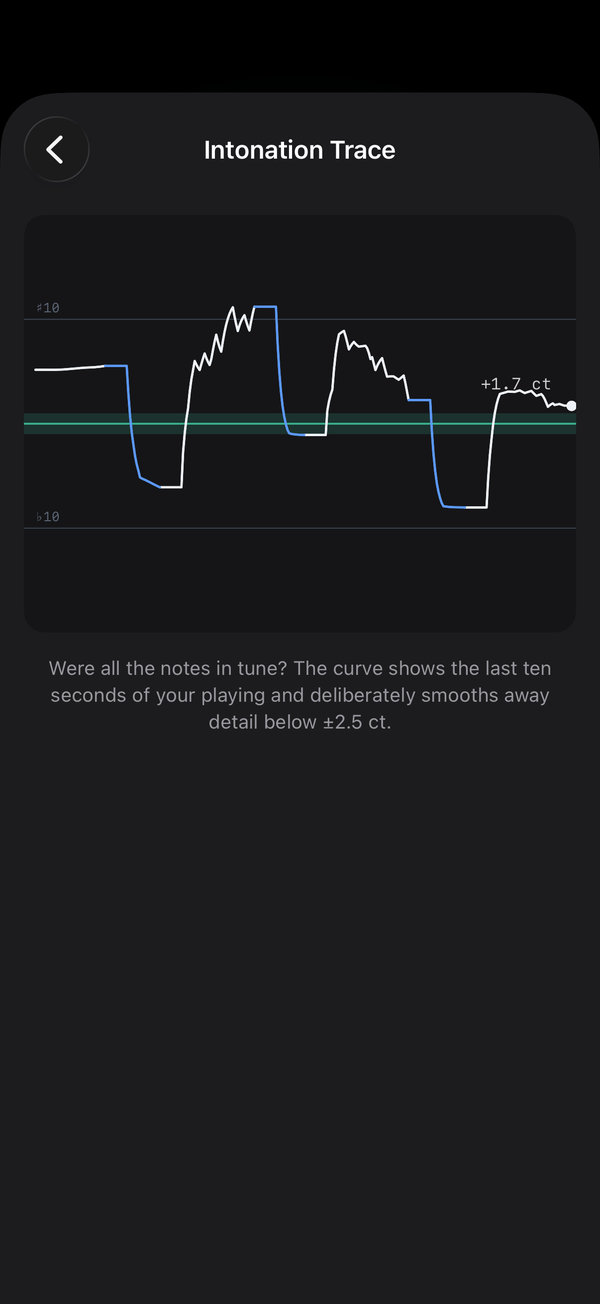
Were all the notes in tune? Intonation Trace draws the last ten seconds of your playing as a curve, note by note. The curve deliberately smooths away small fluctuations.
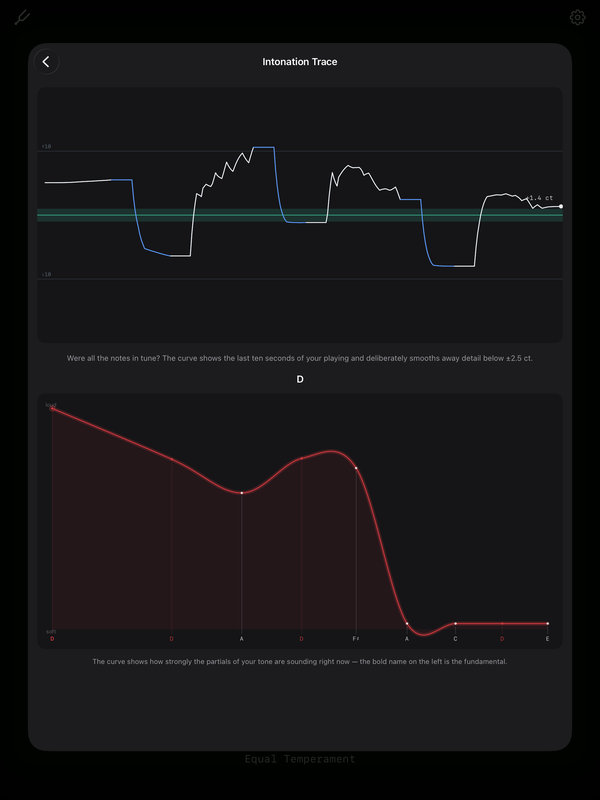
On iPad, Intonation Trace shows Live overtones alongside: stacked in portrait, side by side in landscape.
Slow Motion part of Quinta Pro
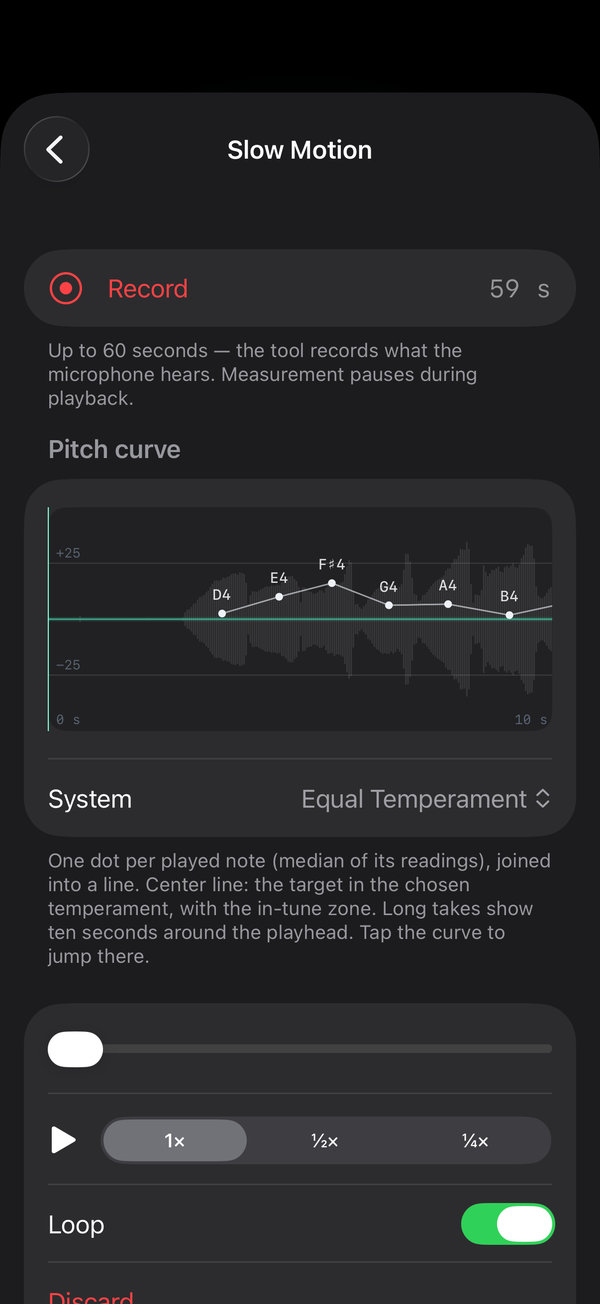
Quick take, slow listen: “Record” starts and “Stop” ends a take of up to 60 seconds. The tool records what the microphone hears.
Listening: playback starts at 1×, so you first hear the take as it was; ½× and ¼× slow it down without changing the pitch. Beats and vibrato slow down with it; they belong to the take. The slider jumps to any point, “Loop” repeats the take, “Discard” deletes it. Measurement pauses during playback.
Pitch curve: Quinta sets one dot per played note and joins the dots into a line. The center line is the target in the chosen temperament, with the in-tune zone: dots above are sharp, dots below are flat. Long takes show ten seconds around the playhead; tap the curve to jump there.
System: the curve starts with the temperament from your settings. Pick another one here and Quinta recalculates the dots. The choice applies only in Slow Motion and does not change your settings.
The take lives only in this tool: when you leave Slow Motion, it is gone. Nothing is saved or sent.
Live overtones part of Quinta Pro
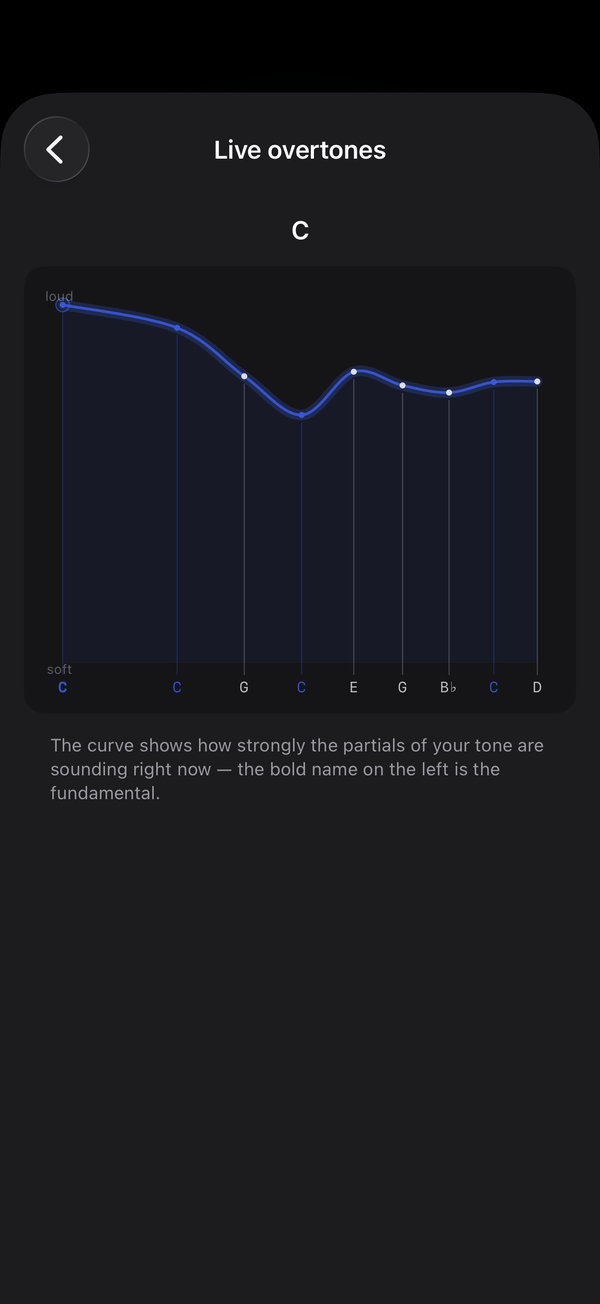
The curve shows how strongly the partials of your tone are sounding right now. The bold name on the left is the fundamental; the overtones follow to the right with their note names. Up is loud, down is soft. The curve follows your playing in real time.
Your Sound Profile part of Quinta Pro
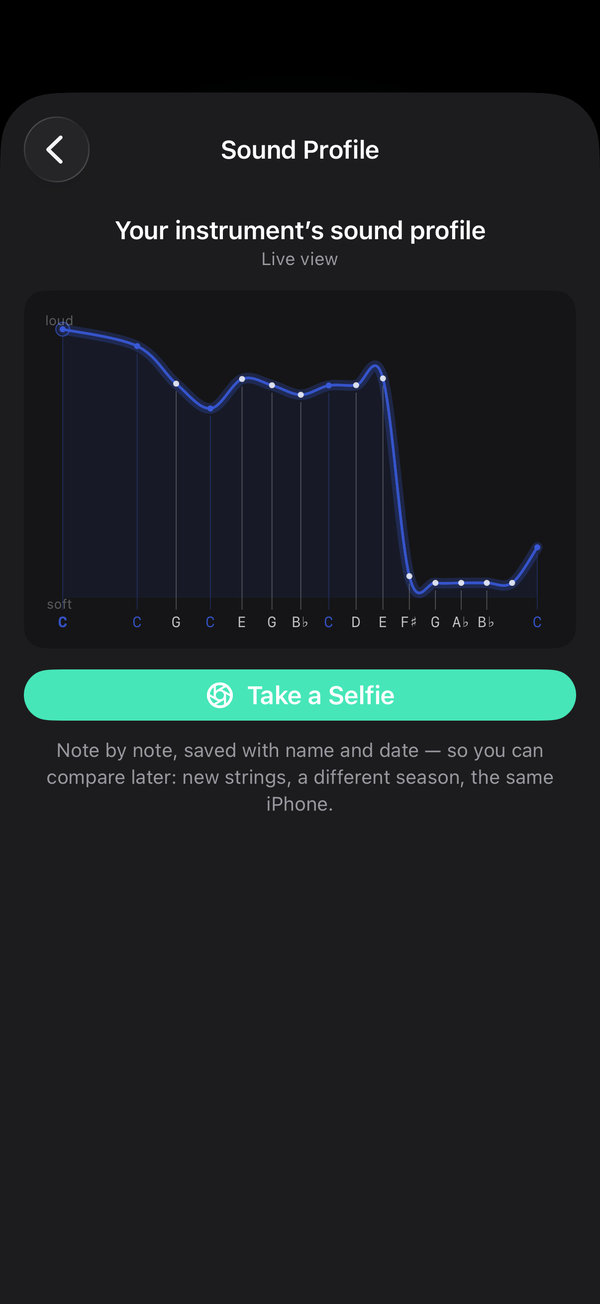
New strings, new reed, a repair? Your Sound Profile records how your instrument sounds, note by note, with name and date, so you can compare later.
Live view: play a note and the curve shows its partials.
Taking a selfie:
- Play one open string (or one note) after another and damp the other strings. Quinta detects the change on its own.
- Stay on each note until the small green ring closes, usually about 30 seconds.
- Poco f, focused and overtone-rich: a steady bow stroke or embouchure raises the precision. An indicator shows whether you are too loud or too soft.
- Exactly the same angle and distance as last time, because the surroundings have a strong influence on the result. Lay your iPhone or iPad down firmly.
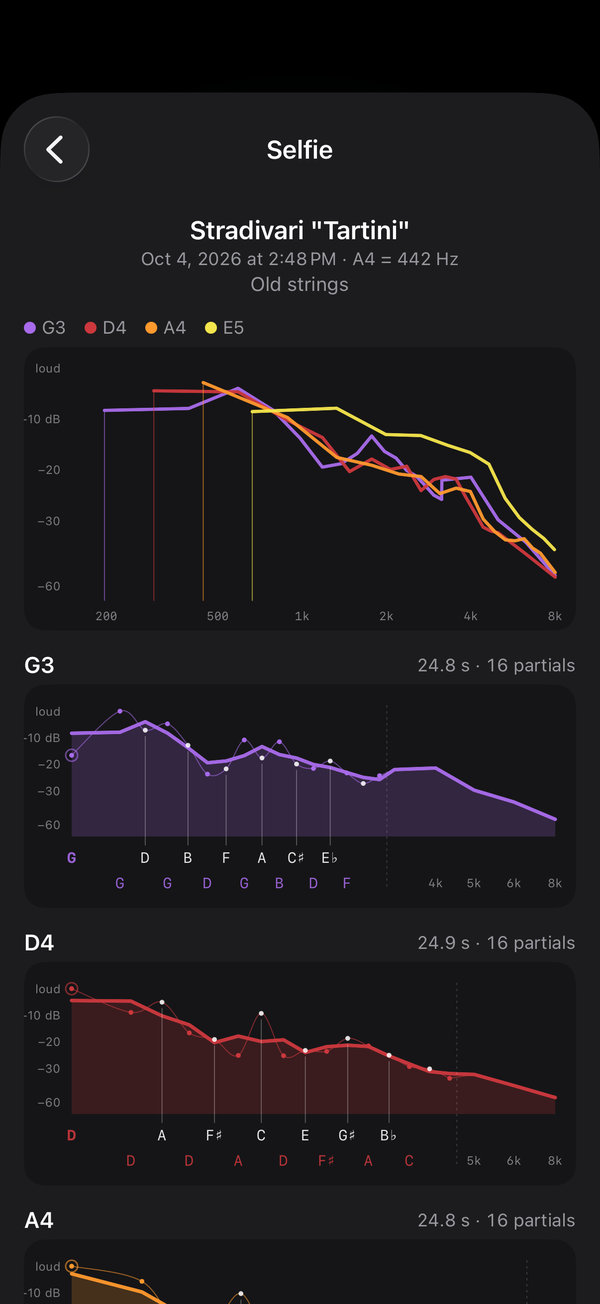
Then tap “Finish” and “Save Selfie”, with a name (your string set, say) and a note.
Allow a quiet minute per string. Bow changes cost time: with short strokes a note takes 50 to 60 seconds instead of about 30.
Comparing: “Compare with …” overlays two selfies, solid for the newer, dashed for the older. Small differences in individual partials are normal; real change shows as a pattern across several partials. Only selfies taken on the same device, in the same position and the same room are comparable. If two selfies come from different devices, Quinta tells you.
To the right of the divider lies the brilliance range; it reacts more sensitively to angle, distance and bow pressure than the low partials. “Share Sound Profile” turns a selfie into an image, for messages or your photo library.
Tone Output part of Quinta Pro
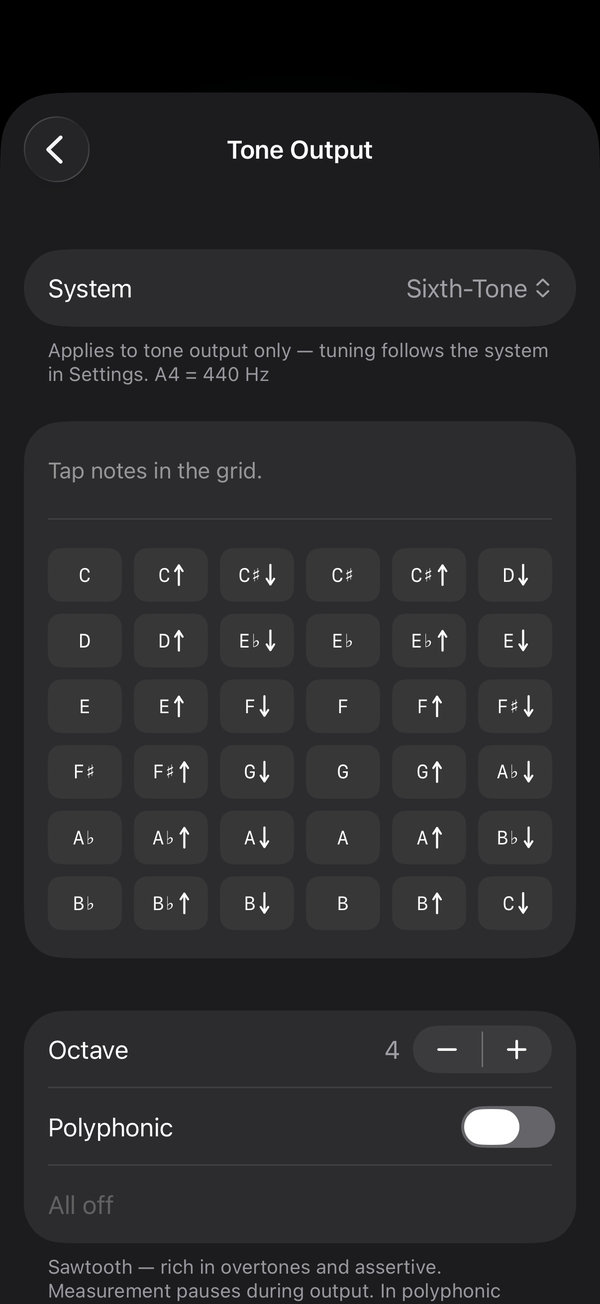
Hear notes and chords in the chosen system: tap notes in the grid, and tapping a sounding note stops it. “Octave” changes the register.
Polyphonic: every tap adds a note, up to four. “All off” stops them all.
System: Tone Output starts with the temperament from Settings. A system chosen here applies to tone output only; tuning still follows Settings. In Quarter-Tone and Sixth-Tone the grid also offers quarter-tones and sixth-tones. Concert pitch and root come from Settings.
The sound is rich in overtones and cuts through. Measurement pauses during output.
Temperaments part of Quinta Pro
In Settings under “Temperament”, you choose the system:
Equal Temperament · Quarter-Tone · Sixth-Tone · Pure Fifths · Pythagorean (pure) · ¼-Comma Meantone · ⅙-Comma Meantone · ⅓-Comma Meantone · Werckmeister III · Kirnberger III · Kellner (Bach) · Vallotti · Young II
A4 stays put. A4 always sits exactly on the configured concert pitch. Every temperament arranges itself around this fixed A4, which is never detuned. In systems with a root, the root rotates the pattern.
Quarter- and sixth-tones: in Quarter-Tone, Quinta shows quarter-tones with a dedicated accidental; in Sixth-Tone, the nearest semitone with an arrow up or down.
Spelling: in meantone, Pythagorean and Pure Fifths, note names follow the chain of fifths. In meantone, G♯ is G♯, not A♭.
Custom temperaments: under “Custom Temperaments” you create your own: each note’s deviation from equal temperament in cents, with C as reference. A4 still stays exactly on the concert pitch while tuning; Quinta anchors the table accordingly. With “Concert A · Multiple notes” you can also capture the tuning of a real instrument and save it here.
Settings
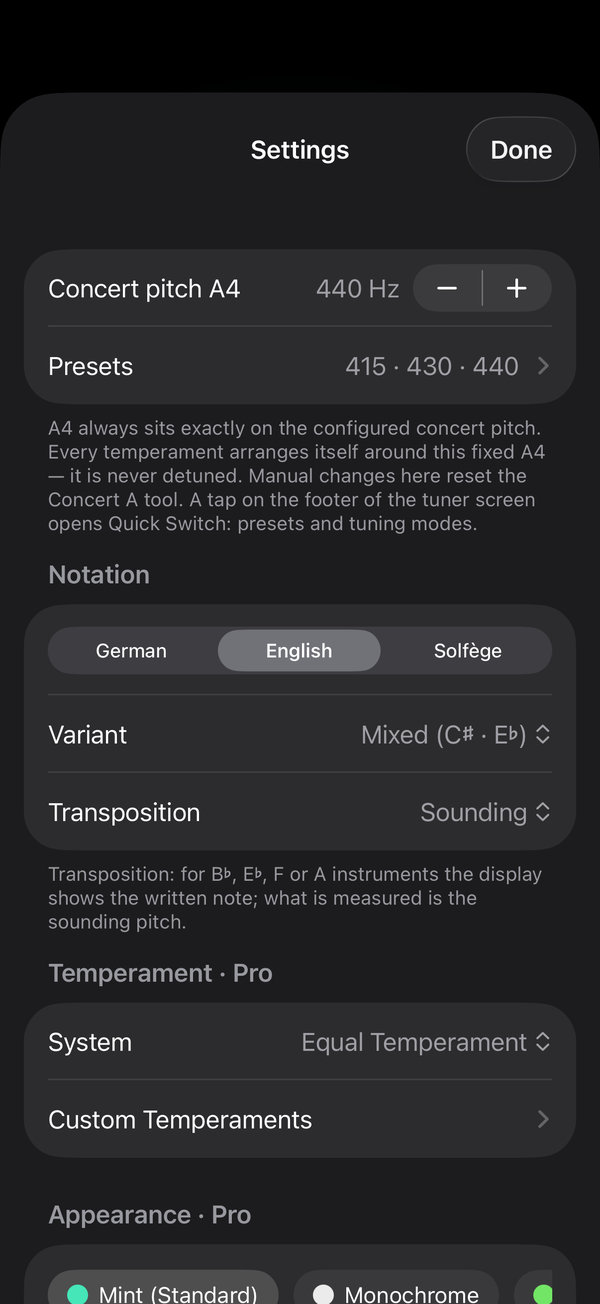
The gear at the top right opens Settings.
Concert pitch: A4 from 390 to 466 Hz, with the presets for Quick Switch below. A manual change resets a concert pitch measured with Concert A.
Notation: English, German (with B and H) or Solfège, each in variants: mixed, ♯ only or ♭ only, Solfège with Do or Ut. Free.
Transposition: for B♭, E♭, F or A instruments the display shows the written note; what is measured is the sounding pitch. Example: B♭ instrument, sounding A, Quinta shows B. Concert pitch and temperament stay at sounding pitch. Free.
Temperament part of Quinta Pro
System, root and custom temperaments; more under Temperaments.
Appearance part of Quinta Pro
Five templates (Mint, Monochrome, Ocean, Amber, Bordeaux), plus accent color, gradient colors top and bottom, gradient glow and vignette. “Save Current Design” creates a custom template; touch and hold to delete one. Custom tuning modes can be linked to a template.
App Icon part of Quinta Pro
The Q and the pure fifth as a Lissajous figure (3:2), each luminous and inverted. iOS confirms the switch with a brief notice.




Nerd Mode part of Quinta Pro
When it’s on, a long press on the tuner screen opens the Lab: in-tune zone, needle, stability, the ±10 ct fine scale and the readout line with hertz, target and spread. Saveable as a custom mode. “Reset Settings” restores the standard at any time, leaving concert pitch and temperament untouched.
About Quinta
Version, this guide and the privacy policy.
Unlocking and restoring Quinta Pro
Free: the tuner screen, concert pitch with presets and Quick Switch, notation, transposition and the Standard and Bass modes. Everything with a padlock is part of Quinta Pro: the tools, the further tuning modes, temperaments, appearance, app icons and Nerd Mode. Locked settings stay visible; a tap opens the Quinta Pro page.
Unlocking: Settings › “Unlock Quinta Pro”, or tap any padlock, then “Unlock”. A one-time purchase, no subscription. With Ask to Buy (Family Sharing), Pro unlocks as soon as the request is approved.
Restoring: on a new device or after reinstalling: Settings › “Restore Purchases”, also on the Quinta Pro page. Pro works on every iPhone and iPad with the same Apple Account. With Family Sharing, members of your family group can use Pro too.
Refunds: Apple handles purchases and refunds: reportaproblem.apple.com.